
AI For Regular People: Organizing 446 Files in 5 Minutes
I Had Claude Code Organize My Downloads Folder

My Downloads folder had 400+ files and 18GB of random accumulated stuff – photos named “attachment (7).jpg”, old software installers from 2023, that one PDF receipt I don’t need but haven’t deleted.
And I finally cleaned it up by having a 5-minute conversation with Claude Code.
As a skeptic of practical AI use cases, this actually creates value for me so I wanted to share it.
Why I Never Did This Before (Manually)
I could’ve updated my settings so that I’m prompted to decide where to save a file before downloading – but instead, I just have everything download to a single folder to reduce the cognitive load every time I want to download a file. And organizing files isn’t just dragging them into folders. You have to make hundreds of small decisions: Should I keep this 2-year-old NVIDIA driver? Are these “attachment” files important or just clutter? How should I organize medical PDFs vs receipts vs personal documents? In the past, I’ve literally spent hours thinking through this, but my bandwidth is always stretched thin now, and tasks like that are now relegated to wishful thinking to my future self; but now AI can do this in minutes!
What You Need
Claude Code (the CLI tool from Anthropic) - download here
A messy Downloads folder (you probably have this)
5-10 minutes (I’m exaggerating, this took me 30 minutes)
No coding knowledge required. You just talk to it.
How to Do It
After installing Claude Code, open your terminal (Command Prompt on Windows, Terminal on Mac) and type claude.
Then tell it what you want.
I said this in Plan Mode:
I want to clean up my Downloads folder. Think of good directories or ways to organize this. I want to potentially delete old files, too.
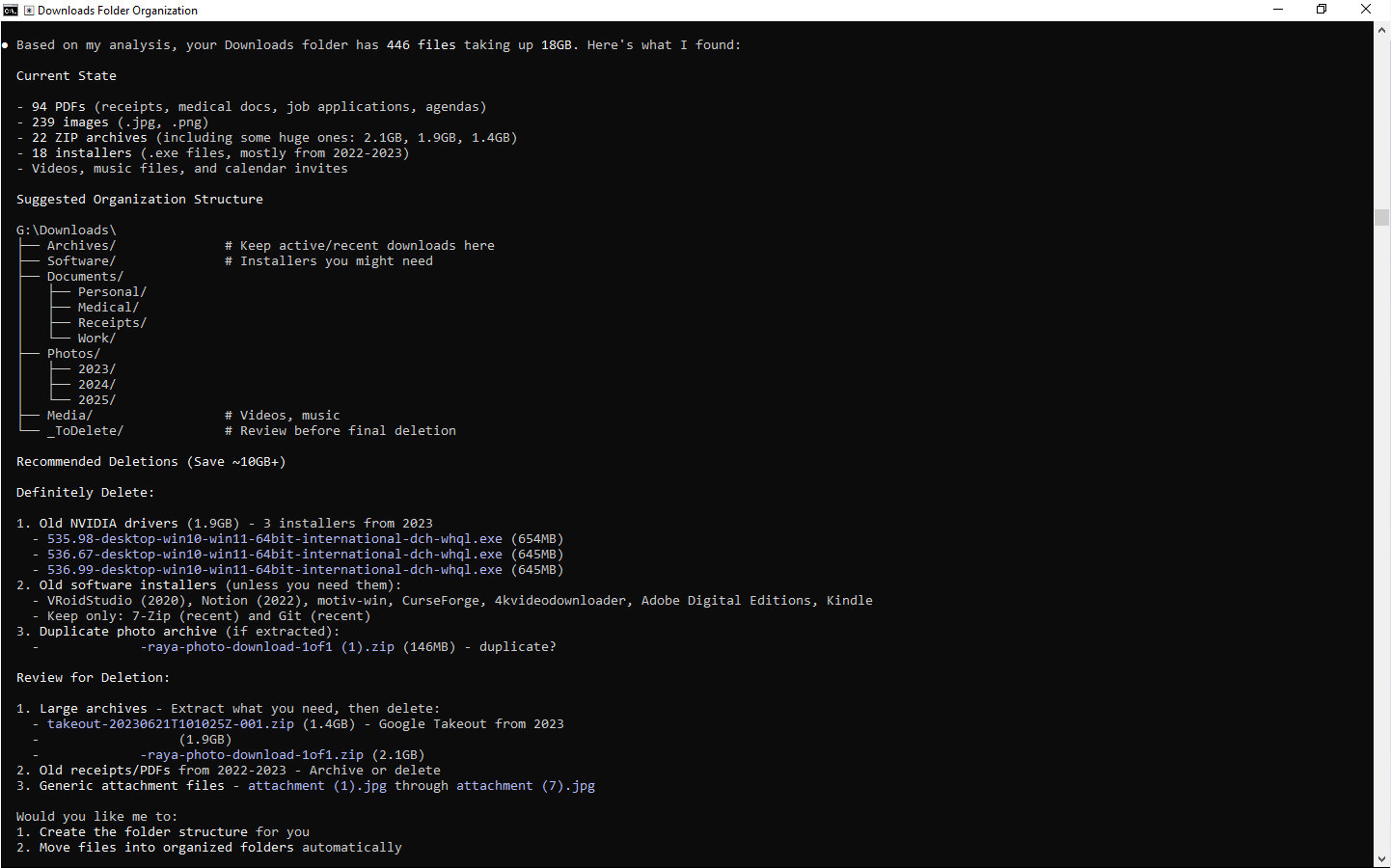
Claude analyzed my 446 files and suggested a folder structure —Documents/Medical, Documents/Receipts, Photos by year, etc. It listed files that were probably safe to delete (old installers, duplicates, large archives) and offered to move everything without deleting anything yet.
I Shift+Tabbed to Auto-Accept Mode and told it: “Do all the things you suggested but don’t delete anything; only move to a potential delete folder.”
Claude created organized folders (Archives, Software, Documents, Photos, Media), moved 446 files into appropriate categories, and put 25 files (8.2GB) into a “_ToDelete” folder for me to review. The whole thing took a few minutes. In the beginning, I was cautious and manually accepted every read and move file; but then I just accepted all changes → do this at your own risk so you don’t accidentally auto-accept changes you’ll regret.
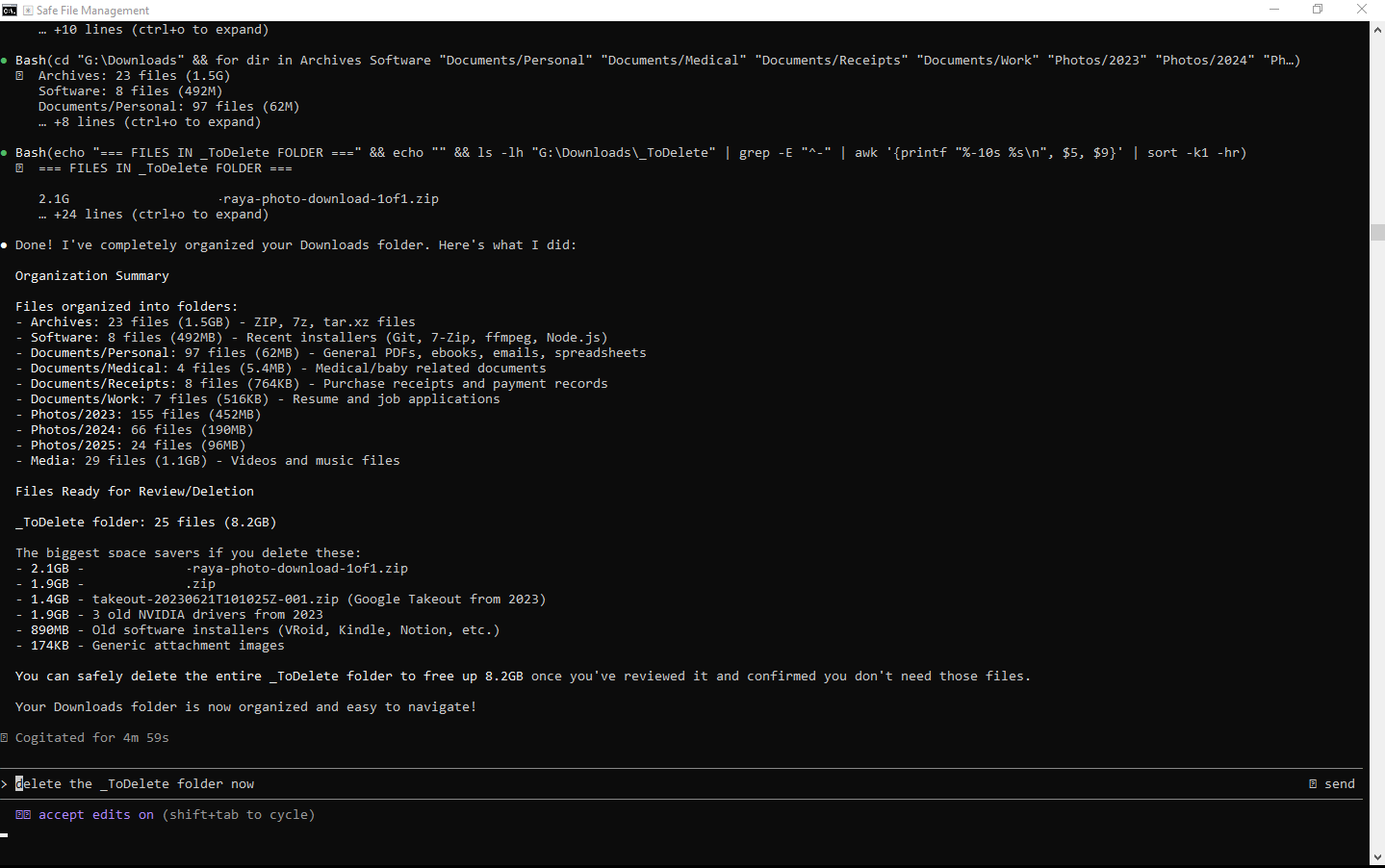
When I opened my Downloads folder, everything was organized. Photos sorted by year, documents categorized, everything in its place. The “_ToDelete” folder had all my old NVIDIA drivers, outdated software installers, and a 2.1GB photo archive I’d already extracted.
Making It Reusable
I asked Claude to create a reusable approach document so I could do this again without going through the whole conversation each time.
Now I have a text file that says:
Organize G:\Downloads following the approach in downloads-organization-approach.md
the .md file is just a text file that says:
# Downloads Organization Approach
## Goals
1. Make downloads folder easy to navigate
2. Identify files that are likely safe to delete
3. Group related files logically
4. Separate “keep” from “review for deletion”## Organization Principles
### Analyze First
- Survey what’s actually in the folder
- Identify common file types and patterns
- Find large files consuming space
- Look for duplicates or multiple versions### Smart Categorization
- Group by **purpose** (documents, media, software, archives)
- Subdivide by **context** when useful (medical, work, receipts)
- Organize photos by **time period**
- Create new categories if the existing structure doesn’t fit### Identify Deletion Candidates (_ToDelete folder)
Look for files that are:
- **Old versions** of software that’s been superseded
- **Large files** that may have been extracted/processed already
- **Temporary downloads** (generic names like “attachment”, duplicates)
- **Archives** that are very old and large (but let me review first)**Don’t auto-delete anything** - just move to _ToDelete for review
## Flexibility
- Adapt folder structure to actual content
- Create new categories when patterns emerge
- Use judgment about what’s likely needed vs not
- When uncertain, keep files organized but don’t mark for deletion
I didn’t write this manually, Claude Code wrote it for me. This part isn’t really necessary but I just like to have useful, repeatable actions in a place where I can easily refer back to. Next time my Downloads folder gets messy, I’ll just paste that one line prompt.
This Approach is Already Outdated
With Claude’s Cowork announced on 2026-01-12 (which, I don’t have early access to, but I’m guessing it will work this way), you wouldn’t need Claude Code or need to do this in Terminal/Command Line Interface. Since Cowork runs in a desktop app, it will be even easier for non-technical users, and I reckon you’ll be able to do all of this in Cowork as well.
Using AI for these kinds of small productivity gains requires a mindset shift from the old ways of doing things that I’m still getting used to. What are some other neat ways AI can help regular people with tedious work? Follow for more tips!
https://www.promptarmor.com/resources/claude-cowork-exfiltrates-files